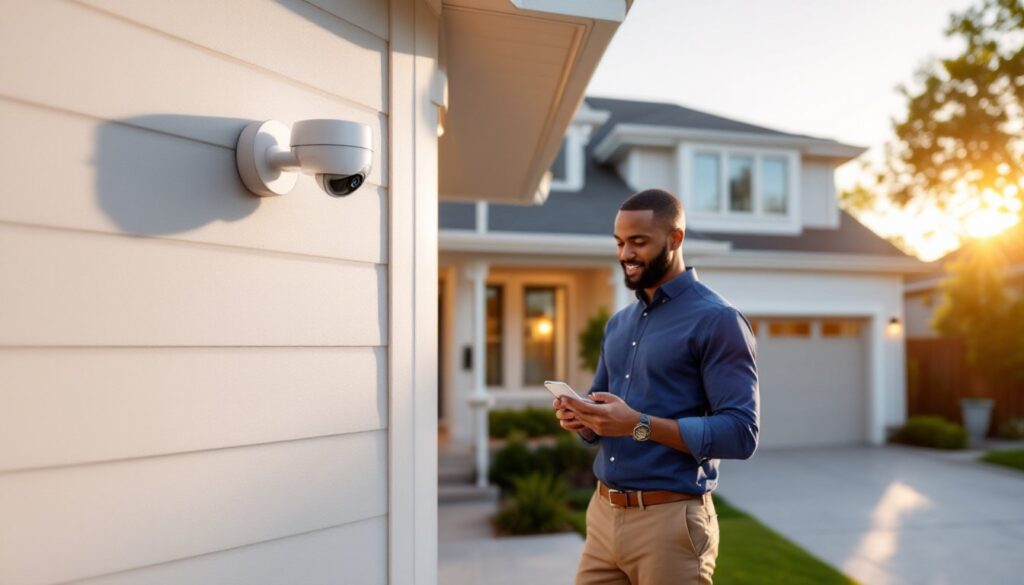
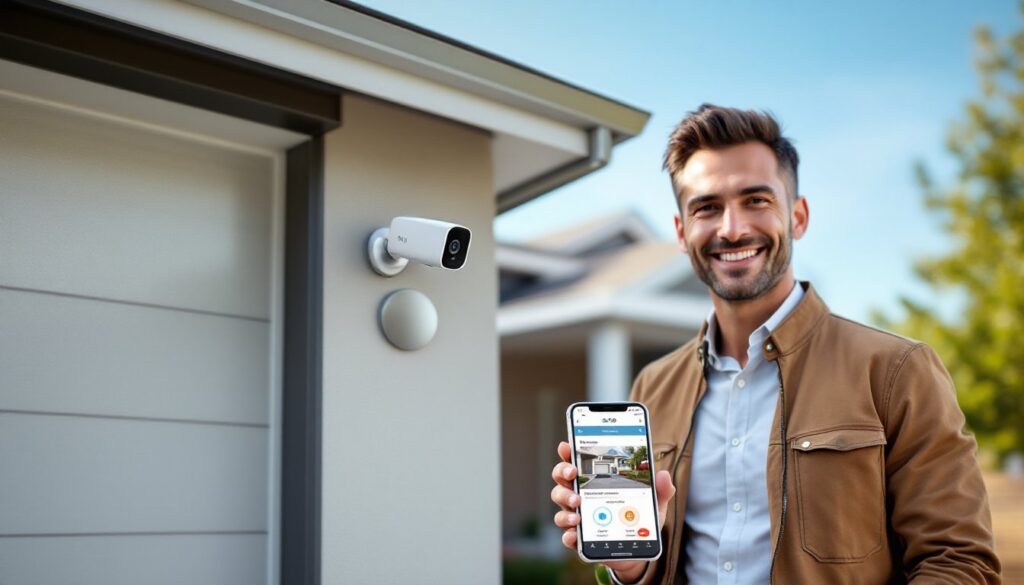
Installing a security camera system is one of the most effective ways to protect property and monitor activity around the home. While professional installation can cost hundreds or even thousands of dollars, a DIY approach saves money and gives homeowners full control over camera placement and system configuration. Modern systems have become significantly easier to install, with wireless options and smartphone integration eliminating much of the complexity. This guide walks through the entire process, from selecting the right system to mounting cameras and configuring remote access, so homeowners can complete the installation with confidence.
Table of Contents
ToggleKey Takeaways
- A DIY security camera system installation saves hundreds or thousands of dollars while giving homeowners full control over placement and configuration.
- Wired PoE (Power over Ethernet) systems offer the ideal balance for DIYers—combining reliability with simpler installation compared to traditional wired setups.
- Wireless systems provide flexibility and faster installation, making them ideal for renters or properties with strong Wi-Fi coverage.
- Strategic camera placement at entry points, garages, and backyard access zones at 8–10 feet high prevents tampering while capturing faces and license plates.
- Modern security camera systems simplify remote access and mobile monitoring through smartphone apps, eliminating the need for complex cable work in many cases.
- Proper sealing and weatherproofing of outdoor camera installations prevent moisture intrusion, the leading cause of camera failure.
Choosing the Right Security Camera System for Your Home
The first decision is selecting a system that matches the property’s layout, budget, and monitoring needs. Camera systems fall into two main categories: wired and wireless. Each has distinct advantages and limitations.
Wired systems use cables (typically coaxial or Ethernet) to transmit video and power. They’re reliable, don’t suffer from Wi-Fi interference, and often support higher-resolution feeds. But, installation requires running cables through walls, attics, or along exterior surfaces, which can be labor-intensive. Power over Ethernet (PoE) cameras simplify things by carrying both power and data over a single Cat5e or Cat6 cable, reducing the number of wires needed.
Wireless systems connect via Wi-Fi and are powered by batteries, solar panels, or standard outlets. They’re faster to install and ideal for renters or anyone who doesn’t want to drill through walls. The trade-off is potential signal interference, battery maintenance, and reliance on a stable Wi-Fi network. Some wireless cameras offer local storage via SD cards, while others require cloud subscriptions.
Beyond connectivity, consider resolution (1080p is the minimum: 4K offers better detail for identifying faces or license plates), field of view (wider angles reduce the number of cameras needed), night vision (look for infrared LEDs with a range of at least 30 feet), and weather resistance (IP65 or IP66 ratings for outdoor use). Systems with local storage, either a DVR (Digital Video Recorder) for analog cameras or an NVR (Network Video Recorder) for IP cameras, eliminate monthly fees, which is a key advantage for many homeowners.
Wired vs. Wireless Systems
Wired systems excel in large properties or areas with weak Wi-Fi coverage. They’re the go-to for permanent installations where reliability is non-negotiable. Running cable through an attic or crawl space is straightforward for most single-story homes, but multi-story installations may require fishing wires through walls, which can be tedious.
Wireless systems shine in flexibility. They can be repositioned without rewiring, making them ideal for testing different angles or adjusting coverage as needs change. Battery-powered models eliminate the need for nearby outlets, but frequent recharging can be a hassle. Hybrid systems, wireless cameras with wired power, split the difference, offering installation ease without battery maintenance.
For DIYers comfortable with basic electrical work, a PoE system is often the sweet spot: clean installation, no batteries, and professional-grade reliability. Those prioritizing speed and simplicity should lean toward wireless, especially if the home has strong Wi-Fi coverage in all camera locations.
Essential Tools and Materials You’ll Need
Gathering the right tools upfront prevents mid-project delays. Here’s what most installations require:
Tools:
- Drill/driver with assorted bits (masonry bits for brick or concrete, spade bits for wood)
- Ladder (step ladder for eaves, extension ladder for two-story installations)
- Fish tape or wire pull rods (for running cable through walls or conduit)
- Voltage tester (if tapping into existing electrical outlets)
- Wire strippers and crimpers (for terminating Ethernet or coaxial cables)
- Level (ensures cameras aren’t mounted crooked)
- Stud finder (locates solid mounting points in walls or soffits)
- Cable stapler or clips (secures cable runs along surfaces)
Materials:
- Security camera system (cameras, recorder, cables, and power supplies)
- Ethernet cable (Cat5e or Cat6 for PoE systems: buy in bulk and cut to length)
- Coaxial cable (RG59 for analog systems)
- Cable connectors (RJ45 for Ethernet, BNC for coaxial)
- Mounting hardware (lag screws and anchors for masonry: wood screws for siding or trim)
- Weatherproof junction boxes (for outdoor cable connections)
- Conduit (PVC or metal, if running cable along exposed exterior walls)
- Silicone sealant (prevents water intrusion around mounting holes)
Safety gear:
- Safety glasses (protect from debris when drilling overhead)
- Gloves (especially when working with sharp cable ends or metal conduit)
- Dust mask (if drilling into drywall or insulation)
Most camera kits include the basics, cameras, recorder, and a few cables, but rarely provide enough cable for custom installations. Measure the distance from each camera to the recorder and add 10-15% for routing flexibility. Pre-terminated cables are convenient, but bulk cable allows custom lengths and cleaner runs.
Planning Your Camera Placement Strategy
Strategic placement determines how effective the system will be. Cameras should cover entry points, high-traffic areas, and vulnerable zones like side gates or detached garages.
Prioritize these locations:
- Front door and porch: Captures visitors, package deliveries, and anyone approaching the entrance.
- Garage and driveway: Monitors vehicles and provides a clear view of anyone near parked cars.
- Backyard access points: Gates, sliding doors, and basement windows are common entry points for intruders.
- Side yards: Often overlooked, these areas provide concealment for anyone trying to access windows or utilities.
Mounting height and angle matter. Install cameras 8-10 feet off the ground to prevent tampering while keeping faces and license plates in frame. Angle cameras slightly downward to capture detail at ground level. Avoid pointing cameras directly at bright lights or the sun, which can wash out footage.
Consider field of view overlap. A single wide-angle camera might cover a driveway, but two cameras with overlapping coverage eliminate blind spots and provide backup if one fails. For detailed identification, like reading a license plate, use a camera with a narrower field of view and higher resolution focused on that specific area.
Check outdoor security camera placement best practices to avoid common mistakes like positioning cameras where foliage or eaves obstruct the view. Trees and shrubs grow, so anticipate future obstructions.
Legal considerations: Recording audio may require consent in some states. Video recording is generally legal on private property, but cameras shouldn’t point into neighbors’ windows or public areas where privacy is expected. Check local regulations before installation.
Step-by-Step Installation Process
With cameras and placement mapped out, the installation follows a logical sequence. This guide assumes a PoE or wired system: wireless setups skip cable routing but still require secure mounting.
1. Run cables first. Start from the recorder location and route cables to each camera position. For attic runs, staple cables to joists to keep them organized and prevent sagging. If drilling through exterior walls, angle the hole slightly downward (toward the outside) to prevent water from running into the wall cavity. Use a long spade bit or hole saw sized for the cable and connector.
2. Install the recorder. Place the NVR or DVR in a climate-controlled area like a closet, basement, or utility room. Connect it to the router via Ethernet if it supports remote access. Plug in the power supply and attach a monitor (via HDMI or VGA) for initial setup. Most recorders have a graphical interface that walks through camera detection and recording settings.
3. Test connections before mounting. Temporarily plug each camera into its cable and verify the feed appears on the recorder. This catches faulty cables or connections before cameras are permanently mounted. Adjust the camera angle by hand to confirm the field of view covers the intended area.
Mounting and Positioning Your Cameras
Once cables are tested, it’s time to secure the cameras. Use a level to ensure the camera isn’t tilted, crooked footage is disorienting and harder to review.
Mounting to wood siding or trim: Pre-drill pilot holes slightly smaller than the screw diameter to prevent splitting. Use stainless steel wood screws (typically #10 or #12, 2-3 inches long) for a secure hold. Run the cable through the mounting bracket before tightening screws.
Mounting to brick or stucco: Use a masonry bit to drill holes, then insert plastic or metal anchors. Lag screws or concrete screws provide the strongest hold. Brick can be drilled directly, but mortar joints are softer and easier to penetrate.
Mounting to vinyl or aluminum siding: Avoid screwing directly into siding, which can crack or pull away. Instead, remove a section of siding to access the sheathing or stud behind it, or use a mounting block (a small piece of PVC trim) to create a solid surface.
After mounting, seal all penetrations with silicone caulk to keep moisture out. Water infiltration is the leading cause of camera failure in outdoor installations. Route excess cable into a weatherproof junction box or coil it neatly behind the camera, securing it with cable clips.
Final adjustments: Power on the cameras and fine-tune the angle using the recorder’s live view. Make small changes and re-check the feed until coverage is optimized. Lock any adjustment screws to prevent wind or vibration from shifting the camera over time.
Configuring Your System and Mobile Access
With cameras mounted and powered, the next step is configuring the recorder and enabling remote access. Most modern systems include a smartphone app for live viewing and alerts.
Initial recorder setup: Access the recorder’s menu using the connected monitor and mouse. Set the date and time (critical for accurate timestamps), configure recording schedules (continuous, motion-only, or scheduled), and adjust motion detection zones to ignore areas like trees or streets where constant movement would trigger false alerts.
Enable mobile access by connecting the recorder to the router. Some systems use a QR code scanned by the app: others require entering a device ID or serial number. Make sure the recorder is assigned a static IP address on the local network to prevent connection issues after router reboots. Port forwarding may be required for remote access, consult the recorder’s manual or manufacturer’s website for specific ports.
Test remote viewing by disconnecting from home Wi-Fi and accessing the app over cellular data. Verify that all camera feeds load and that playback functions work. Adjust video quality settings in the app to balance clarity and data usage.
For systems using subscription-free cameras, local storage is the only option. Ensure the recorder’s hard drive has sufficient capacity, 1TB handles about two weeks of continuous 1080p recording from four cameras, depending on compression settings. Larger drives or motion-only recording extend storage significantly.
Enable notifications for motion events, but fine-tune sensitivity to avoid alert fatigue. Most apps allow customizing detection zones and activity thresholds. Test by walking through the camera’s field of view and confirming alerts arrive promptly.
If hiring a professional is preferred, platforms like Angi and HomeAdvisor connect homeowners with local installers who can handle complex setups or multi-camera systems. Professional installation typically ranges from $200 to $600 depending on the number of cameras and the complexity of the install, though costs vary by region and property layout.
Maintenance: Check camera lenses monthly for dirt, cobwebs, or condensation. Inspect cable connections annually, especially in areas exposed to weather. Update the recorder’s firmware periodically to patch security vulnerabilities and add features.